A new way of downloading Trove newspaper images
I’ve created a userscript that expands the options available in the ‘Download’ panel of Trove’s newspaper interface. Using it, you can download full newspaper article and page images with one click.
PLEASE NOTE
While this userscript is very handy, it is also very slow to run. Don’t be surprised if it takes 30 seconds or more to prepare your image. During this time the Trove page might appear to freeze. The amount of time varies according to a number of factors, including the size of the article, the chosen resolution (see ‘Adjust the scale’ below) and the power of your computer. See the ‘Issues and performance’ section below for more.
Installation and use
If you haven’t installed a userscript before, the first step is to add a userscript manager, such as Tampermonkey, to your browser. Tampermonkey is available as an extension or add on for most browsers, to install it:
- go to the Tampermonkey home page
- select your browser (Chrome / Firefox / Safari / Edge)
- follow the link to your browser’s app store
- click on the button to install Tampermonkey
Note that if you’re using Tampermonkey with Chrome-based browsers (including Edge and Vivaldi), you have to explicitly give it permission to run userscripts after installation.
Once the userscript manager is ready, you can actually install the userscript itself:
- go to the minified version of the userscript in GitHub
- click on the ‘Raw’ button
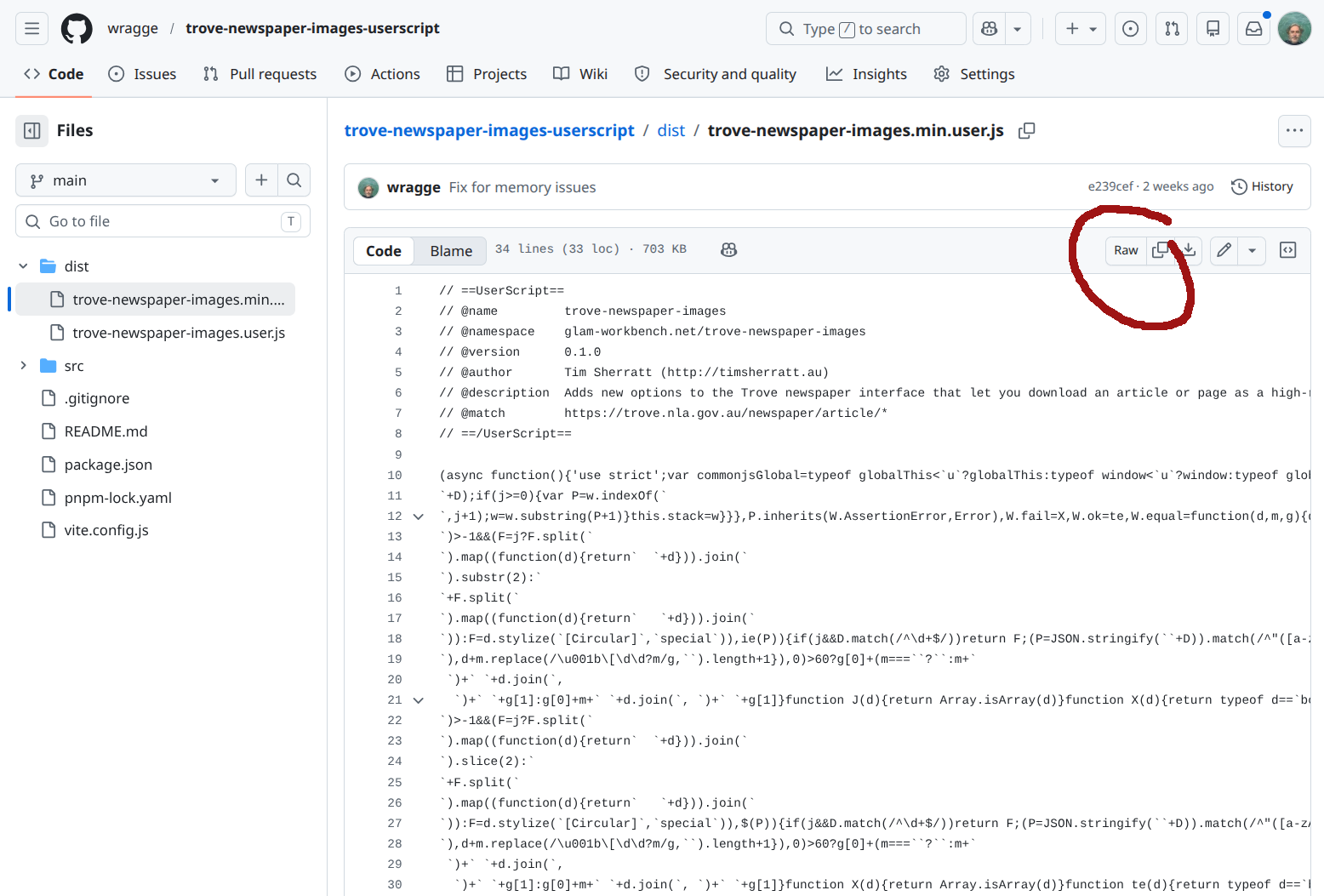
- Your userscript manager will intercept the link and ask you if you want to install the userscript
- Click on the ‘Install’ button
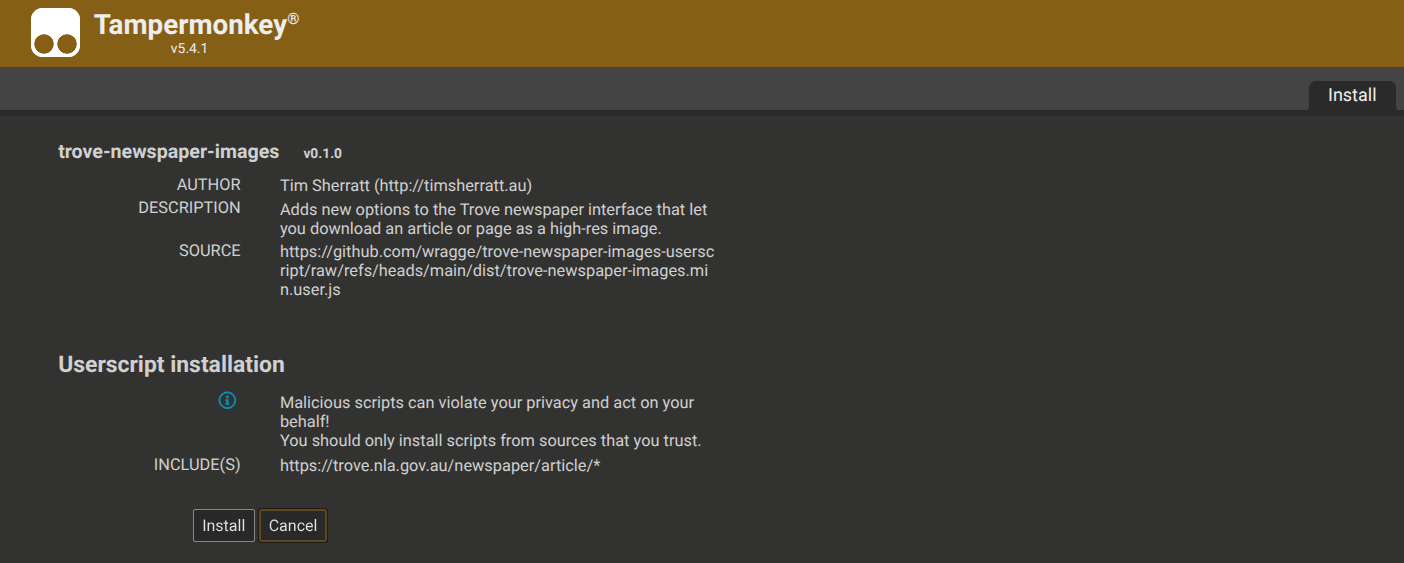
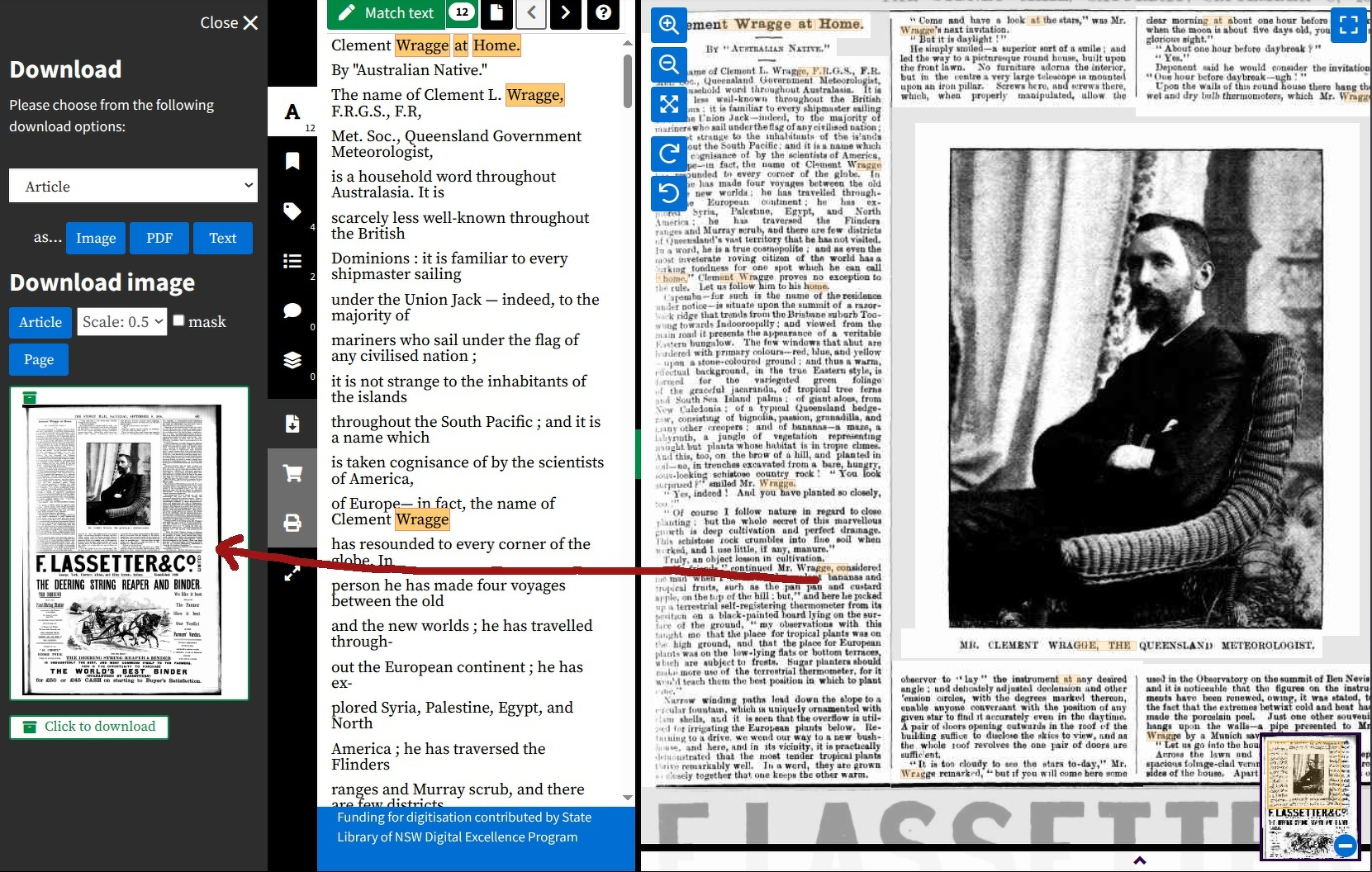
The Trove Newspaper Images userscript will run automatically when you view a newspaper article in Trove. If you open up the ‘Download’ panel you’ll notice there’s two new buttons.
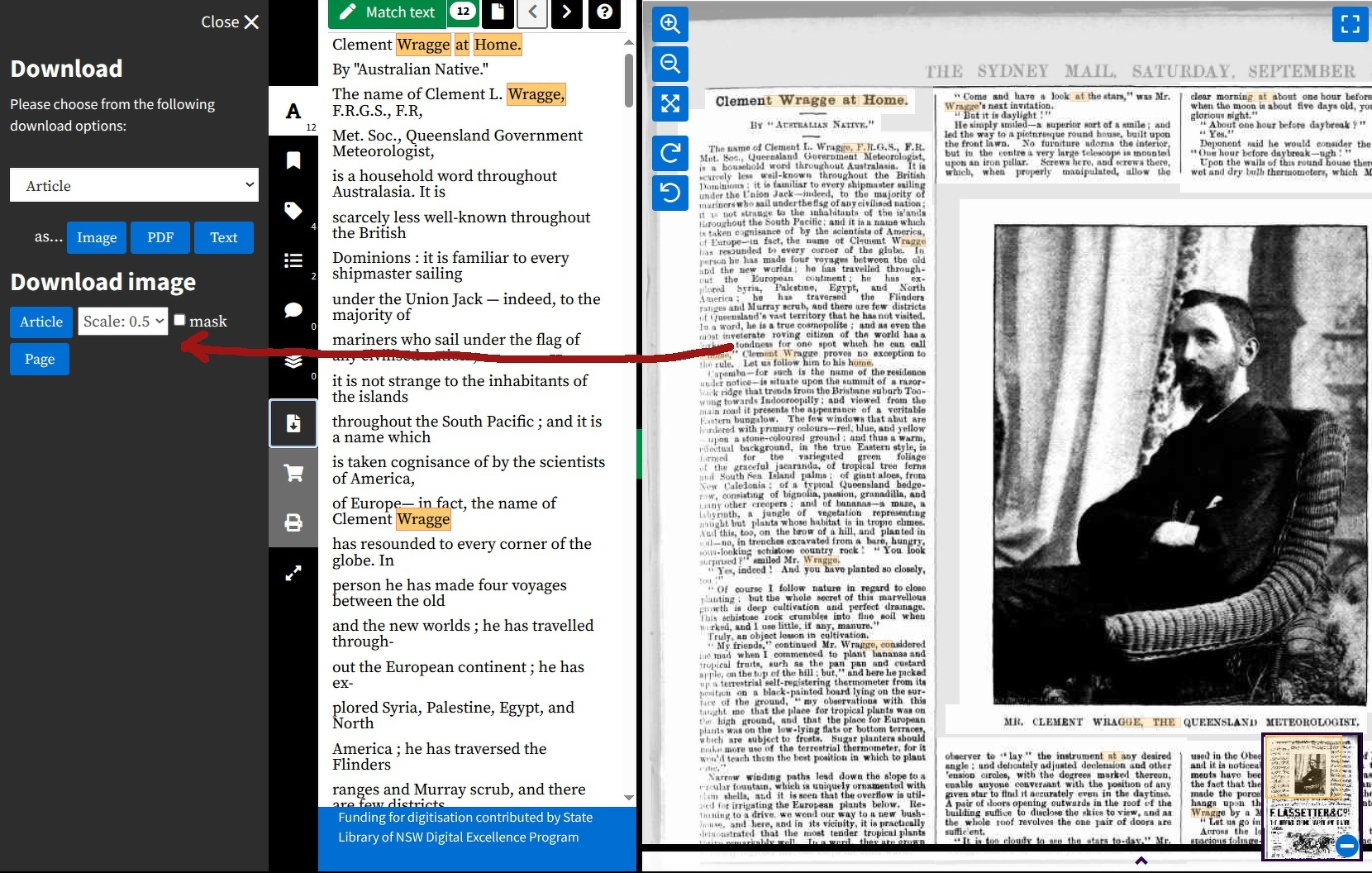
Downloading an article image
Just click on the ‘Article’ button to generate a cropped version of the article image you can download (it can take a little while so be patient). Once the image is ready it’ll be displayed below the buttons. Click on the thumbnail or the link to download the image.
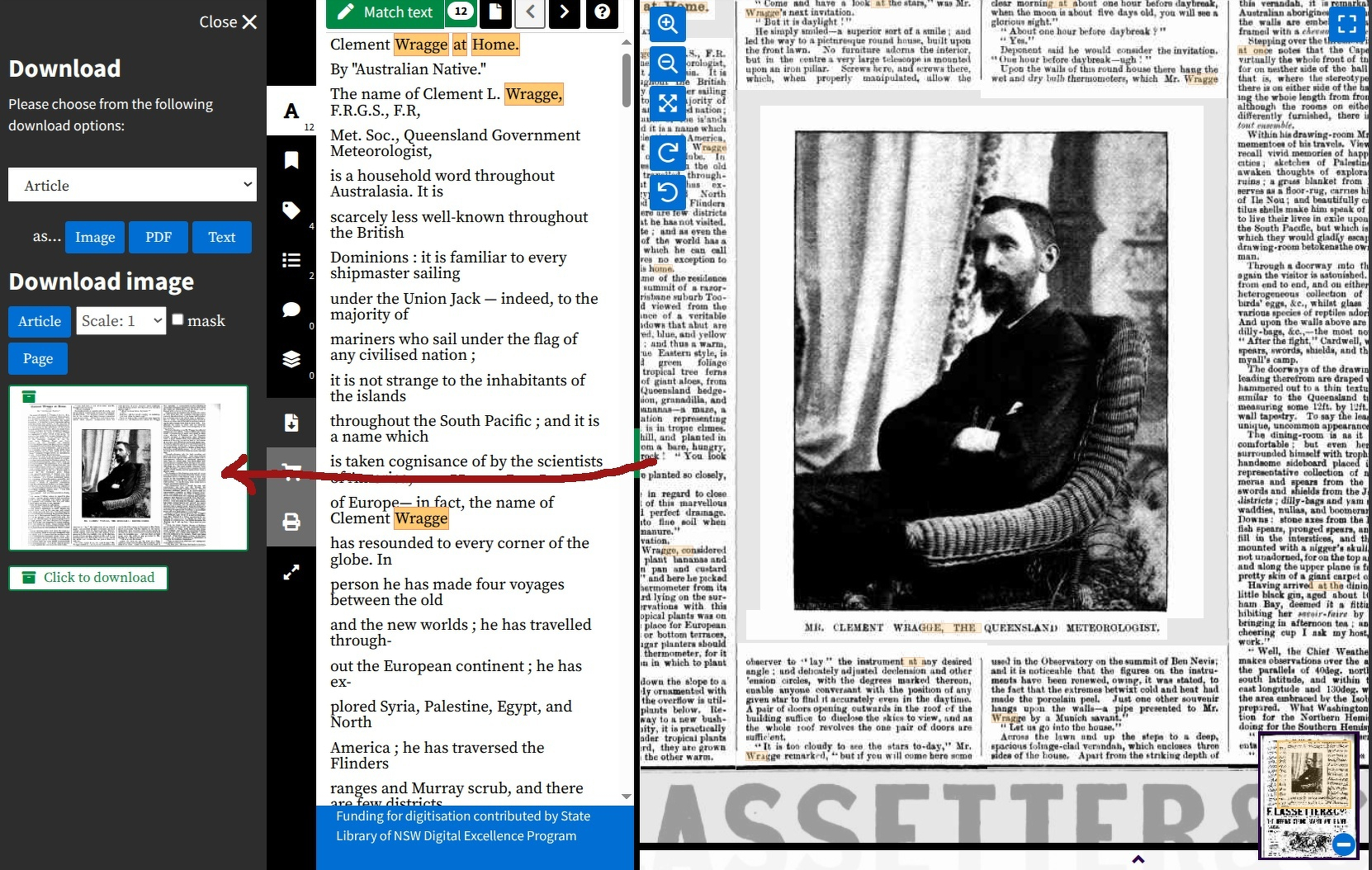
By default, the article image is scaled to 50% of it’s maximum size. The full page images vary in size, but they’re often around 5,000 pixels wide, so even at 50% article images are large enough for most purposes. If you need larger (or smaller) images, you can adjust the scale.
Adjust the scale
Use the ‘Scale’ dropdown to select a scale value between 0.1 and 1. Setting it to 0.1 will generate a smallish, thumbnail-type image, while setting it to 1 will create a download at the highest possible resolution.
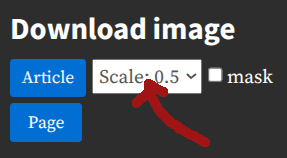
However, as described below, increasing the size of the image slows down the generation process considerably. Setting the scale to 1 might double or triple the time it takes for the image to be created. I’d suggest starting at the default value of 0.5 and increasing the scale factor only as needed.
If your article covers a large part of the page, and you want the highest possible resolution, you might find it more efficient to download the full page image (see below) and manually crop the article. The full page images don’t undergo any extra processing and can be downloaded almost immediately.
Mask the article
Articles are cropped to a rectangular box that fits their outer boundaries . If your article is an odd shape (ie not rectangular), this might mean that there’s some content from adjacent articles included in your image. You can remove this content by checking the ‘Mask’ box.
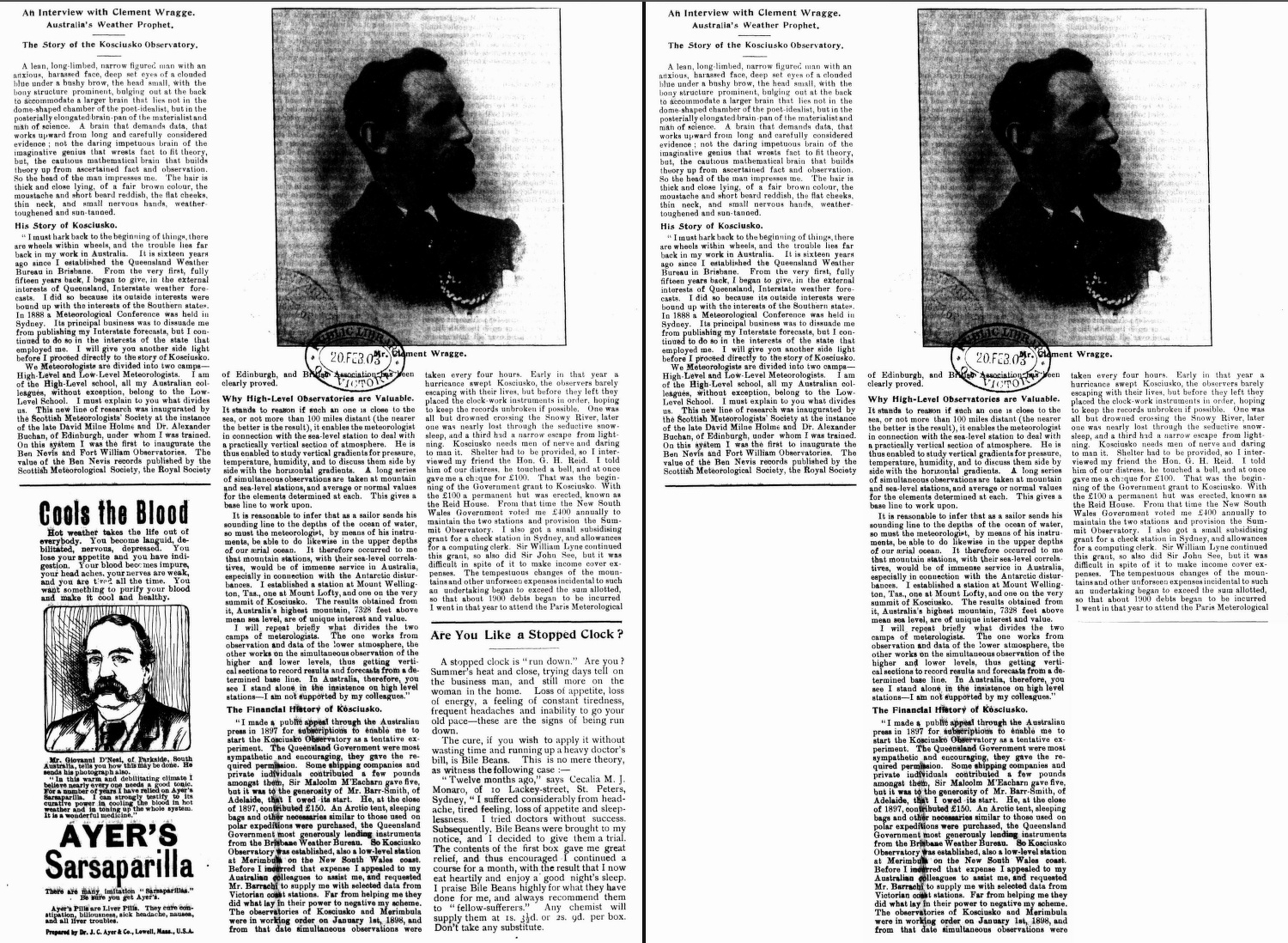
Masking will add a little bit to the overall processing time. So only use it if needed.
Downloading a page image
If you want to download the whole page, click the ‘Page’ button. The page thumbnail should appear almost instantly. Click on the thumbnail or the link to download the image.
File names and Trove links
The file name of the downloaded image contains the Trove article and page identifiers. For example, an image with the filename nla.news-article162833980-page16636766.jpg comes from the article with the identifier 162833980. You can use this identifier to build a link back to Trove: http://nla.gov.au/nla.news-article162833980.
Background
If you’ve ever tried to download an image of a newspaper article in Trove you’d know that it’s not as easy as it should be. The ‘Image’ button in Trove’s ‘Download’ tab actually generates a HTML page with embedded images that are often sliced up in unfortunate ways. I’ve developed a number of workarounds over the years to try and help people get images easily. The basic method is documented by a notebook in the GLAM Workbench – first you extract the coordinates of the article from its HTML page, then you download a high resolution image of the page, and crop the article from the page image using the coordinates. As well as the notebook, I’ve had this running as a service on Cloudrun and, more recently, as a Lambda function on AWS called by a static page in the GLAM Workbench. I also embedded the basic logic into a Python package that people could use in their own data processing pipelines.
I noticed recently that Trove had introduced some new anti-bot defences that will probably break all my previous workarounds. While I’m mostly avoiding anything to do with Trove, I wanted to try and keep this alive in some form as I know how useful it can be. I’d also been wondering for a while whether it might be possible to implement the basic logic inside a userscript.
A userscript is a little bit of Javascript code that runs inside your browser after a page loads. Userscripts can change the way web pages look and function – for example, I’ve created a userscript that lets you navigate through the pages of Trove’s newspapers using only your arrow keys. I’ve written about some other userscripts I’ve developed here, and talked about how useful they can be in this video for the State Library of Victoria. Most recently, I created a userscript to connect the SLV’s digitised maps to Allmaps for georeferencing.
However, I’d never tried to edit images in a userscript, and I didn’t even know if it was possible. After a bit of searching I found Jimp – an image manipulation module written in Javascript. It seemed to have all the necessary functions, but I couldn’t figure out how to get the module to load correctly inside a userscript. Eventually I used this Vite plugin to package the necessary Jimp code within the userscript itself. It worked!
Once I had the image editing sorted, it was just a matter of extending Trove’s user interface to add some new buttons to the ‘Download’ tab and display the new images when ready. The finished userscript is large because of all of the Jimp code, so I’ve generated a minified version as well. If you’re interested in the Trove-specific code it’s easiest to look in the source file.
Issues and performance
While Jimp makes this userscript possible, I did have a few problems with it. The first is that the most recent version isn’t packaged properly, so there were errors when I tried to import it into Vite. I ended up just installing an older version.
Early on I ran into a lot of problems with Jimp exceeding its memory limit. The default memory limit is 512mb, but I found I needed to bump this up to 1024mb to work reliably. It seems the size of images increases significantly once they’re read into Jimp’s buffer. It’s possible to pass along a new maximum memory value to the read method, but this isn’t working in the Jimp version I’m using. I ended up just manually editing the userscript code once it had been generated by Vite by searching for maxMemoryUsageInMB in the Javascript and changing 512 to 1024.
Finally, operations reading large images to or from Jimp’s buffer are really slow. It seems this has to do with the underlying image libraries, so I couldn’t find any workarounds. The slowest step appears to be saving the image in base64 for downloading and embedding in the page. The larger the image, the slower this will be. As noted above, keeping the scale setting at 0.5 reduces the image size and thereby speeds up image generation.
Here’s some comparisons using the article in the images above, which is large and covers almost half the newspaper page. First with my fairly powerful desktop computer:
| Scale factor | Size | Time to generate |
|---|---|---|
| 0.5 | 2182 x 1561px (1.1mb) | 27 seconds |
| 1.0 | 4363 x 3122px (3mb) | 52 seconds |
And second with my 10 year old MacBook Pro (running Linx Mint):
| Scale factor | Size | Time to generate |
|---|---|---|
| 0.5 | 2182 x 1561px (1.1mb) | 1 minute 28 seconds |
| 1.0 | 4363 x 3122px (3mb) | 2 minutes 40 seconds |
As noted above, if you wanted a large image like this in the highest possible resolution you’re probably better off using the ‘Page’ button to download the complete, high-resolution page image and then cropping it manually. This will still give you a better result than using Trove’s built in download tool or trying to use a screen capture program, and will be much faster than using the ‘Article’ option.